
Quick reality check: “not working” usually means either your ads aren’t serving (delivery issue) or they’re serving but not converting (performance issue). Which camp you’re in changes the fix.
In 2026 auctions shift fast, competitors change bids, and platform systems react near real‑time. You need a repeatable troubleshooting order, not random button‑mashing. I’ll start with quick checks, then walk through seven clear reasons—budget and billing, policy, targeting, Ad Rank, keywords and settings, tools and tracking—then a tidy wrap and FAQs.
Little tip before you dive in: don’t Google yourself. Personalisation, location and device skew what you see in a search. Use diagnostics instead—Ad Preview and Diagnosis or built‑in tools—to avoid misleading impressions.
About me: I’m Chris from Loudachris; I’ve seen the same handful of blockers over and over. This intro helps you figure out which one’s tripping your campaign, and points to a quick next step like a Google Ads management in Adelaide check if you want a hand.
Key Takeaways
- “Not working” is either delivery or performance—diagnose which first.
- Ad systems and auctions change fast in 2026—follow a repeatable checklist.
- Use Ad Preview, diagnostics and tracking; avoid personalised search tests.
- Common trouble spots: budget, policy, targeting, Ad Rank, and tracking.
- If you’re stuck, a focused PPC audit or conversion tracking setup can save time.
Quick checks before you touch anything
Don’t dive into optimisation yet; a short pre‑flight check will save time and messy reports. In five minutes you can spot about 80% of delivery problems and avoid changes that make your numbers harder to trust.
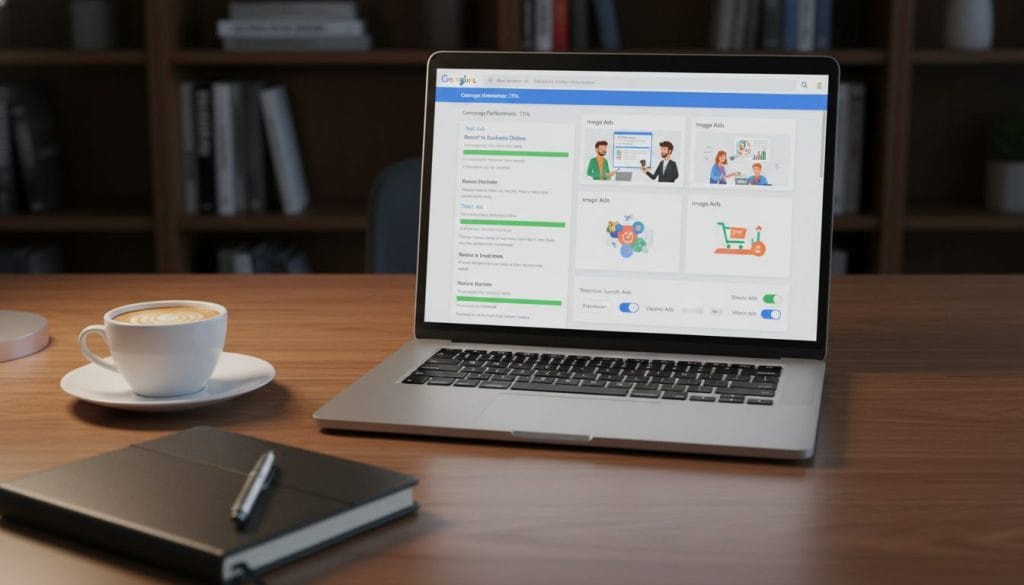
Use Ad Preview and Diagnosis (don’t Google yourself)
Open the Ad Preview and Diagnosis tool and set the keyword, location, language and device. That shows eligibility without personalise bias. Searching normally can hide your ads because of personalisation and location.
Confirm the date range, start date, and end date
Check the report date range and each campaign’s start and end dates. It’s common to see an enabled campaign that actually stopped last week.
Check status at every level: account → campaign → ad group → ads → keywords
Work top to bottom. Make sure your google ads account and each campaign, ad group and ad are Enabled. One paused ad group can kill traffic for a whole campaign.
Scan for flags: “Limited by budget”, “Under review”, “Disapproved”
Look for labels that explain the root cause—money, policy or review timing. New edits can take 24–48 hours to clear, so don’t chase ghosts immediately.
If you want a second set of eyes, consider a PPC audit to speed diagnosis without guesswork.
Key Takeaways
Start with delivery blockers — the account bits that quietly stop traffic before you touch bids. Most problems are settings, billing or policy friction hiding in plain sight.
Delivery blockers first: budget limits, payment failures, paused campaigns and date ranges will stop delivery immediately.
Low impressions are often Ad Rank: missing auctions come from low bids plus weak quality signals, not a broken account.
Use built‑in tools: check Recommendations and Diagnostic insights before you change ten things at once.

- Delivery → Auction → Tools → Review time — follow that order.
- Most ‘stopped’ campaigns are human settings, billing or policy holds, not mysteries.
- Low impressions = Ad Rank story (bids + quality), review that first.
- Policy review: new or edited ads can take 24–48 hours to clear (Google Ads guidance) — don’t panic‑refresh.
1) Budget and billing roadblocks that quietly stop delivery
If your campaigns aren’t spending, check the daily budget and billing first. These are the quickest fixes. If a cap or payment hold exists, the platform won’t show your ads regardless of bids or creative. Run this check before making optimisation moves.
Daily budget too low: what “Limited by budget” means
Limited by budget simply means the campaign is being throttled so spend stays inside the set limit. You’ll enter fewer auctions and get fewer impressions. That’s Google’s way of pacing spend across the day.
Account budget exhausted or payment failures
An exhausted account or failed payment stops delivery immediately. Check the billing page and payment method in your google ads account or ads account. Look for flags such as “account budget exhausted” or payment errors in Recommendations.
Simple fix path: increase budget vs tighten targeting
Decision rule: either raise the daily budget to buy more auctions, or tighten targeting to concentrate the existing spend. Do one change at a time so you can see what helped.
| Problem | Quick check | Simple fix |
|---|---|---|
| Limited by budget | Campaign status → Budget column | Increase daily budget or narrow targeting |
| Payment failure | Billing page → Payment methods | Update card or clear balance |
| Account budget exhausted | Account billing summary | Top up or remove spend caps |
Tip: being stingy with budget can be expensive. Low spend often drives low-volume, low-quality traffic and hurts learning for automated bids or conversions. If you’d rather not fiddle alone, consider a sanity check from Google Ads management in Adelaide.
2) Policy reviews, disapprovals, and “enabled but not serving” traps
If everything is enabled but nothing’s serving, you’re usually stuck in review or disapproved — check ad and landing page status before changing bids.
Allow 24–48 hours after creating or editing an ad. The review clock resets with edits, so patience often saves wasted changes. Diagnostic insights will flag disapproved assets and the Recommendations page can show account‑level blockers.
Common statuses and what to do in plain terms:
- Under review — wait the full 24–48 day window; edits restart the timer.
- Disapproved — fix the text, targeting or landing page; check the policy snippet in the ad status for the exact issue.
- Approved (limited) — reach is restricted; consider softer language or remove claims that trigger limits.
Look in Ads & assets for ad‑level flags, then scan Recommendations for anything that blocks multiple ads. For appeals: contest obvious errors. For wording problems: rewrite. If the destination promise and the landing page don’t match, fix the landing page — that’s a common hidden issue.
| Symptom | Where to check | Quick action |
|---|---|---|
| No impressions but enabled | Ads & assets status | Check policy flag; wait or fix copy |
| Ad disapproved | Ad details → policy notes | Rewrite or appeal if clearly incorrect |
| Approved (limited) | Recommendations & ad status | Soften claims or remove restricted content |
3) When targeting is too narrow and Google can’t find your people
If impressions are tiny, your targeting layers may have turned the audience into a postage stamp — loosen one constraint at a time and watch the numbers. Start with location or a single audience segment so you can see which change helps fastest.
Location targeting gotchas
Use Presence vs Interest correctly — Presence means people physically in the area, Interest means anyone searching about it. Metro vs regional matters in Australia; a radius around the wrong suburb can exclude nearby customers.
Also, you might not see your own ads because your device, IP or chosen city sits outside the set location. Check with the preview tool and test from the target device.
Device, audience and demographic stacking
Stacking device‑only, age/gender, audience lists and schedules quickly crushes reach. Small local business campaigns suffer most — each layer multiplies the filter and cuts eligible users.
Remarketing minimums and simple fixes
Remarketing lists need time: Display requires at least 100 users, Search (RLSA) needs 1,000 users. If lists are tiny, remove that layer or run broader display to build the audience.
- Quick test: broaden location or remove one audience layer, then monitor impressions for 24–48 hours.
- If traffic returns but conversions lag, go to landing page optimisation.
4) Low bids, weak Ad Rank, and lost impression share on Google Search
If your campaigns are eligible but barely show, you’re usually losing auctions due to low bids or weak Ad Rank. Check Search Lost IS (ad rank), impression share and top‑of‑page rate, then lift bids or improve ad quality — ideally both.
Think of auctions like a busy market: you’re not being ignored, other advertisers simply outbid or out‑rank you in real time. Use the Search Lost IS (ad rank) column to see how often Ad Rank blocked your impressions.
Ad quality basics
Quality is three parts: expected CTR, ad relevance and landing page experience. Tighten the keyword to copy match, make offers clear, and match the ad promise to the landing page.
Quick client result: one Adelaide tradie account I worked on lifted conversion rate after tightening ad copy and matching the landing page message.
| What you see | Likely cause | Where to check in Google Ads | Fastest safe fix |
|---|---|---|---|
| Low impressions | Low bids / low Ad Rank | Search Lost IS (ad rank), Impression share | Raise bids or improve ad relevance |
| Low top‑page rate | Competing bids | Top of page rate, Bid strategy | Increase max CPC or adjust bid targets |
| Clicks but no conversions | Poor landing page or copy | Landing page experience, Conversion tracking | Align copy and page; improve load speed |
| Eligibility but rare show | Narrow targeting or budget cap | Campaign settings, Budget column | Broaden targeting or raise budget |
5) Keywords and settings problems that make traffic vanish
If clicks and traffic vanish overnight, start by checking keywords and campaign settings — they’re the usual culprits. Fix these in order so you don’t scramble other parts of the account.
Low search volume keywords
Google may label some keywords as low search volume, which means they won’t trigger often. Swap very rare terms for realistic variants that keep intent, or add broader match phrases while keeping an eye on relevance.
Overly strict match types
Exact and phrase match can choke reach if you use them everywhere. Test one ad group at a time: open one group to broader match, measure the change, then revert if relevance drops.
Negative keywords blocking traffic
Negatives at account or campaign level can accidentally block lots of queries. Check for broad negatives like free or single words that stop commercial searches. Review negatives before adding more.
Network and settings mix-ups
Search and display expect different creatives and targeting. Don’t expect display‑style reach from a search campaign. Check network settings and make sure campaign type matches your goal.
- Quick order: check match types → review negatives → confirm network settings.
- If you get traffic but can’t tell what’s working, link to conversion tracking setup to close the loop.
6) Tools and insights to troubleshoot like a pro (without guesswork)
Start with the platform’s own signals — they usually tell you if a campaign can’t enter auctions or if it’s simply underperforming.
Diagnostic insights: what the system flags
The Diagnostics panel flags billing holds, policy rejections, disapproved assets and low bid targets. Check it first and act on the top 1–2 items only; don’t change ten settings at once.
Recommendations: which fixes matter when traffic is low
Priority fixes are unpausing campaigns, resolving disapprovals, raising budgets or loosening CPA targets. Low‑priority suggestions—creative swaps or aggressive bid strategies—can wait until traffic stabilises.
Auction dynamics and daily fluctuation
Competitors change bids and budgets day to day. Expect impression and CPC swings — check Search Lost IS and impression share across a few days before jumping to conclusions.
Conversion tracking checks
Automated bid strategies need clean conversion data. Verify tags, primary conversions and attribution settings. If tracking is thin or broken, serving and performance will be volatile.
Dynamic Search Ads and page eligibility
DSA needs eligible pages. If pages are few or the landing page experience is poor, DSA will struggle to serve. Fix page eligibility and structure before blaming campaign settings.
“If it’s not showing, it’s usually eligibility. If it’s showing but not converting, it’s relevance and the landing page. Don’t fix the wrong problem.”
| Signal | What it flags | Fast action |
|---|---|---|
| Diagnostics | Billing, policy, disapproved assets | Resolve holds, appeal or rewrite copy |
| Recommendations | Budget, CPA, unpause suggestions | Apply priority fixes only |
| Conversion data | Missing or thin conversions | Check tags, set primary conversion |
Quick stats: allow 24–48 hours for reviews (platform guidance), remarketing lists need minimum users for reach (platform guidance), and industry estimates put fraud at 5.1% of clicks, costing about US$37.7b in 2024 (industry report).
Conclusion
Keep it simple: follow the order that finds the real blocker without guesswork. Quick checks → budget and billing → policy → targeting → Ad Rank and bids → keywords and settings → diagnostics and tracking.
Most problems clear up within an hour once you find the bottleneck. Allow 24–48 hours for review windows. Use Ad Preview, Recommendations and Diagnostic insights to separate delivery from performance issues. Auction swings and broken tracking can still skew results, so change one variable at a time.
If you prefer a second brain, Book a free audit at loudachris.com.au or check our conversion tracking setup and landing page optimisation guides.
Q: Why can’t I see my own ads on google search? Search is personalised. Use the Ad Preview tool, match the device and location, and avoid personal searches that hide true delivery.
Q: How long does review take in 2026? Most reviews finish in 24–48 hours. Edits restart the timer, so wait before making more changes.
Q: What does “Limited by budget” mean? It means your campaign is being paced. Raise the daily budget or narrow targeting to buy more auctions and improve performance.
FAQ
What are the most common reasons my Google Ads aren’t delivering?
What quick checks should I run before changing anything?
How long do new or edited ads take to review?
Why does “Limited by budget” matter and how do I fix it?
My account shows payment issues — will that stop campaigns immediately?
Ads show “Approved (limited)” — what does that mean?
Why can’t I see my ad when I search for it locally?
How does too-narrow targeting kill traffic?
What role do bids and Ad Rank play in low impressions?
Could keywords or match types be stopping traffic?
Why am I getting clicks but no conversions after recent changes?
What tools can I use to diagnose low traffic without guessing?
When should I appeal a disapproval versus rewriting the ad?
How can I prevent future delivery problems?

Chris Lourenco is the director of Loudachris Digital Marketing, an Adelaide-based SEO, Google Ads, and web design agency. Chris excels in crafting bespoke, results-driven strategies that help businesses get more traffic, leads and sales.